
Password Protect Folder in Windows 10
Portable software to lock and password protect folders on Windows 10 hard drives, USB flash drive, and all types of mobile storage devices.
Three Security Methods: Lock, Scramble and Encrypt.
File Security: Undeletable, Unmovable and Inaccessible.
Portability: Enjoy full data protection anytime and anywhere.
Easy Usage: No installation and directly run and protect your data.
File Size: 1.5MB
Version: 7.0
Updated: Nov 27,2021
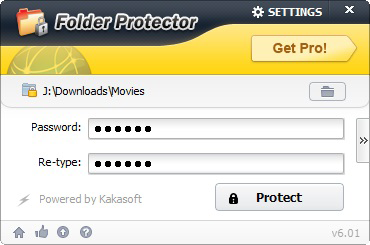
how to password protect a folder in windows 10
LockDir is an easy-to-use software designed for password protection of folders or drives on Windows systems.
If you put your sensitive files on your computer, you must pay attention to the data security of these files because there are so many potential threats that leave a door for cybercriminals.
LockDir is a widely accepted application that users worldwide have welcomed for quite a long time. Get Folder Protector here and learn to lock folders and files by yourself:
Download LockDir with the following button. And then follow the step-by-step guide to protecting folders with a password.
1. Select a folder you want to protect
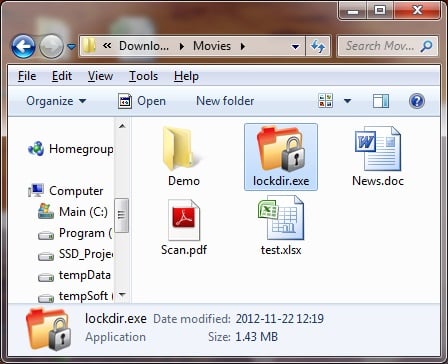
Copy lockdir.exe to the folder you want to protect and run “lockdir.exe”.
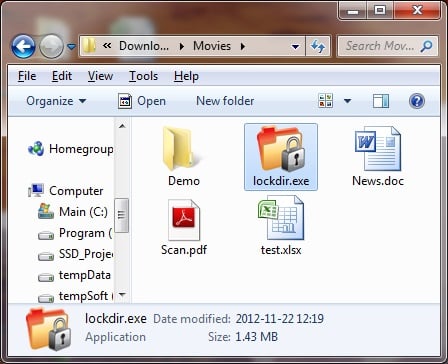
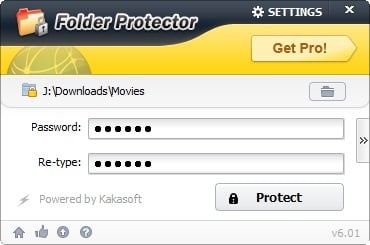
2. Set a Password to protect the selected folder
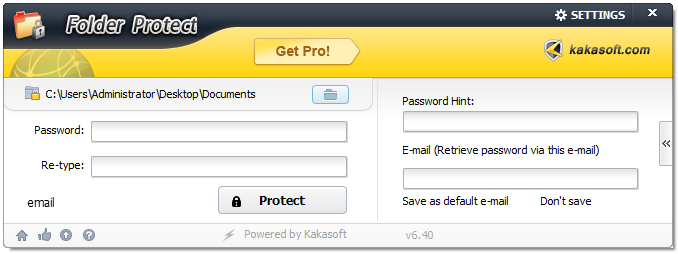
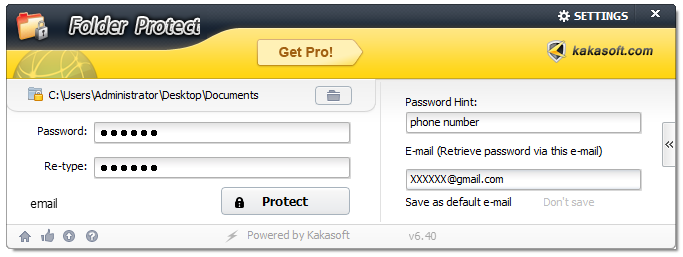
Enter your password and then click “Protect” button to protect your folder.
You can also right-click on any folder and then select “LockDir” option to password protect it(You should enable “Display on the right-click menu” option from the Settings window first).
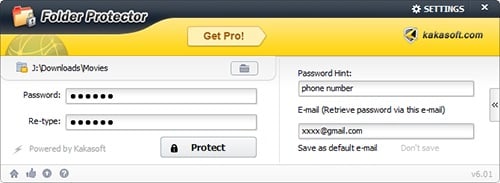
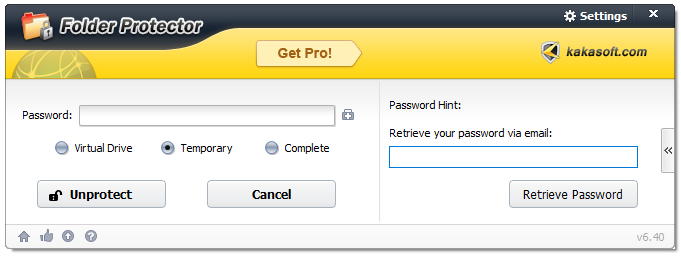
3. Make settings to retrieve the password.
a. Click on the “>>” button on the right side of the main window.
b. Type a password hint to help you remember your password.
Remember that anyone unprotected this folder will be able to see the password hint.
c. Set an e-mail address to help you retrieve the password. The program will remember this e-mail address if you click on “Save as default e-mail”.
4. Click the “Protect” button to Protect folders
Now the folder has been successfully protected and all the files are hidden.
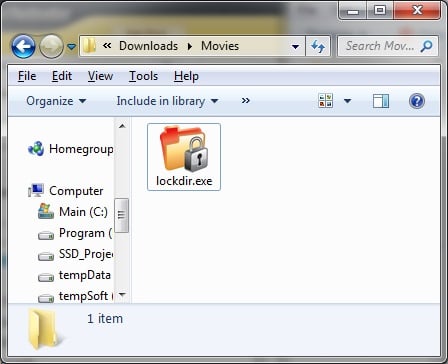
5. Unprotect the folder
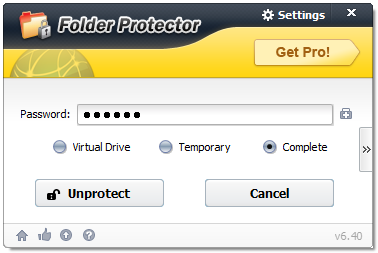
Three different unprotection modes
Virtual Drive: Access your data in a virtual drive without extracting the data, which means the folder will be reprotected automatically as soon as you close the explorer window.
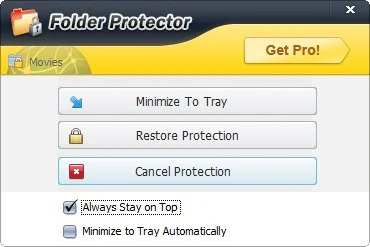
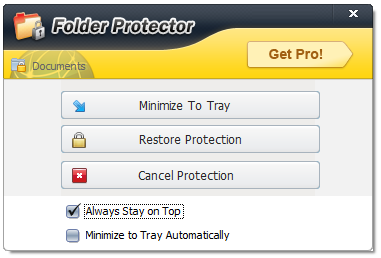
Temporary: Show a restore window on your taskbar after unprotection, allowing you to restore protection quickly.
Complete: Completely unprotect your folder. You need to rerun Folder Protector and enter a new password to protect the folder if you wish to gain folder protection again.
Open the password-protected folder, run “LockDir.exe” program, and then enter the correct password, Click “Unprotect”, the folder can be easily unprotected.
It is recommended to use temporary decryption mode or virtual disk mode, so that folders can be quickly restored protection.
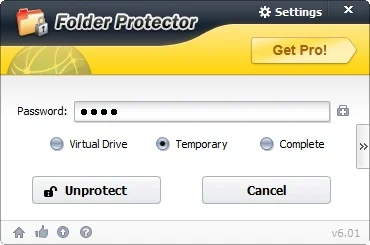
Temporary unprotection Window.
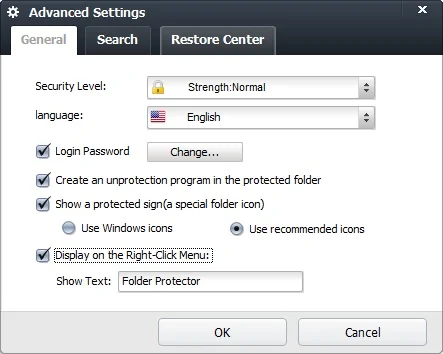
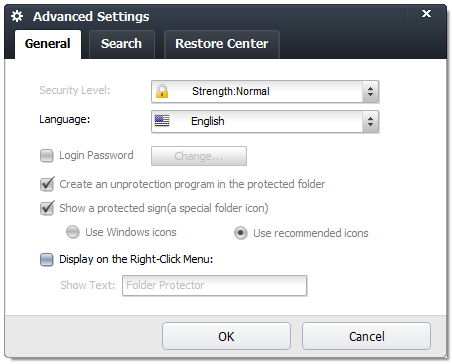
6. Advanced Settings
1. Security Level Setting
security levels: Normal, High, Highest.
| Normal | High | Highest | |
| Encryption Speed | Fastest | Fast (50 files per second) | Slow (15M data per second) |
| Encryption Method | hide and Lock Files | Scramble and encrypt file headers | 256-bit AES Encryption |
2. Language
Nine languages: English, French, German, Japanese, Korean, Spanish, Turkish, Russian, Simplified Chinese, Traditional Chinese.
3. Login password
We recommend you to set a login password to avoid unauthorized access to your folder.
4. Create an unprotection program in the protected folder
Allow you to unprotect your folder by running the “lockdir.exe” program. If you uncheck this option, you have to copy the “lockdir.exe” file to the protected folder first and run it when you need to unprotect the folder.
5. Show a protected sign(a special folder icon)
The special folder icon helps you distinguish protected folders from other folders.
6. Display on the Right-Click menu
Allow you to right-click a folder and select the “Folder Protector” option in the Right-Click Menu to protect.
Why Use LockDir to Password Protect Windows 10 Folders?
LockDir (Folder Protector) is a portable password protection application that helps users to protect folders, files, or drives on a Windows computer. It uses industry-standard 256-bit on-the-fly AES Encryption technology to securely encrypt your folders and all of the valuable data. Generally, you are allowed to run it directly and lock up your folder without installing it on your computer.
Secure and Strong Encryption
Use strong industry standard 256-bit on-the-fly AES Encryption technology to encrypt your folders or files for maximum protection.
Portability
No installation is required by simply copying the “Lockdir.exe” program to a folder or drive and running it to lock, and a password protects the folder or drives no matter where you take it.
Instant Protection
LockDir lets you password protect folders with an exclusive password and prevents your sensitive data from being accessed, misused, moved, modified, or deleted without your permission.
Easy usage
Anyone can protect sensitive data on the local drive or removable devices in 2 simple steps without requiring any expertise or special knowledge.
Compatibility
LockDir is fully compatible with Windows 10/8/7 (32 bit and 64 bit), W Windows Vista (32 bit and 64 bit), Windows XP (32 bit and 64 bit), Windows 2003/XP/2000 and is compatible on all file systems including FAT, FAT32, and NTFS.
More…
LockDir has advanced features such as “Security-Level” options, which allow users to select a proper security level to lock a folder. Other features of this folder Protect software include: Advanced Settings, Show Protected Signs, Password Hint, restore Center, Change the icon of the protected folder, Display Language, File Filter system, etc.
Support All Types of Storage Devices
Password protect folders on hard drives and USB flash drives, external hard drives, thumb drives, memory sticks, memory cards, jump drives, pen drives, etc.
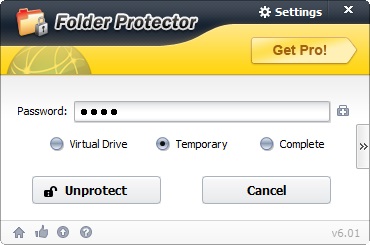
3 Methods to Password protect folders
Virtual Drive: Data is directly mapped to the virtual drive, faster and safer.
Temporary: After the protection is released, you can restore the protection at any time with one key.
Complete: Completely remove the protection.
FAQs of Folder Protector
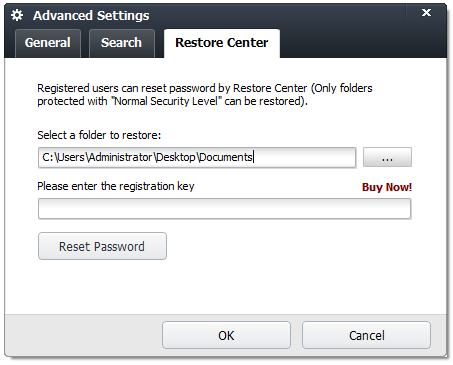
If you are using v5.56 or earlier: You can reset your password through the Recovery Center if you are a registered user. (But only folders protected by the “Normal” security level can be restored. We cannot decrypt folders protected by the “High” or “Highest” security level.) Learn more about Recovery Center
If the folder is protected by version 5.70 or higher and a recovery email has been set, you may retrieve the password through the “Recovery Mailbox” function. Learn more about password retrieval
Please note that LockDir.exe is just a program and does not contain encrypted data, so deleting this program will not lose your data. Just copy another “Lockdir.exe” program back to that folder. Run it and you can unprotect your folder.
No way. The protected folder is fully locked and cannot be deleted, moved, and completely inaccessible.
Therefore, the user cannot get the properties of the protected folder.
Everyone can benefit from Folder Protector. Everyone, from individuals to corporations, wants be reassured that their confidential information remains confidential. KakaSoft Folder Protector can provide that reassurance.
There is no limit to the size of files nor to the total number of files that may be lock/scramble/encrypt at one time.
With this folder protect software option, secret files are highly secure. It uses 256-bit Blowfish Encryption which is a highly secure method to protect sensitive files
Yes. Folder Protector supports all kinds of disk types like FAT16, FAT32, exFAT, NTFS; EFS.
After you purchase the software, the system will automatically send a registration code to your email address. Just enter the registration code in the software registration window. Learn More
Yes. KakaSoft Folder Protector can be used on Windows 10/8/7/Vista/2003/XP/2000.
No, the protected folders are still protected on Mac, so users cannot access protected files in any way without the correct password.
What People Are Saying Our folder Protector

This software is great. It gave my files the best encryption. The user interface and experience are amazing. The protection procedure is awesome. I just selected the file and entered my desired password twice. And Lockdir protected the file in just two steps. It took me less than a minute. I would recommend this as a must-have software.
– Maurene

LockDir is awesome. Convenient to set up the passcode and quick with its job.
– Judy

LockDir is the best encryption software I have ever used till now. The setup method is so simple. I find it a safe choice.
– Laurene

I am using this software from more than a year. The files are well secured and it is too user friendly. The experience is awesome.
– Olivia
Tips & tricks for LockDir
How to Lock a folder and Ensure Data Security with Lockdir on Windows 10?
Truecrypt Review 2021: What Happened to It and Its Best Alternative
How to Password Protect External Hard Drive?
Top 10 Folder Protection Software
5 Easy Ways to Lock A PDF
How to Lock and Password Protect a Folder in Windows 7?
Screenshots of LockDir

input-email-empty 
input-email 
unprotect-complete 
retrieve-password 
advanced-settings-general 
advanced-settings-restore-center 
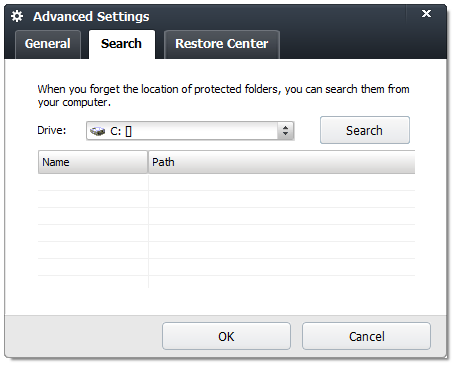
advanced-settings-search 
unprotect-correct-password
Top 10 Tools to Password Protect Folders on Windows 10
There are many reasons for using the protection software. The main reason is to prevent significant data leakage, and the second is to prevent unauthorized access. Protecting your sensitive documents via password protection is a great way to ensure they remain secure. Until now, there is no such official in-built windows software that can help you with this protection purpose. This can only be done by using third-party password protection tools. There are many top-notch password protection software. You can download them from their official websites. We understand it to be a bit confusing for you.
Hence here is a list of top X tools to password-protect your folders on Windows 10.
Folder Protect
It is free software, and you can also use it commercially. It can protect your files and folders from the access of intruders. Select and lock your files using the Folder safeguard tool to protect your files from unauthorized access. It will ask you to choose a strong password to save your crucial files. You can easily unlock the files locked in this tool. On purchasing its paid version, you can set the encryption to 256-bits.
Padlock Software
A padlock software is not a wrong choice at all. However, it will safeguard your already existing locked folders. No one can delete and do amendments in the locked folders using this tool. It helps you protect the files and folders by dragging and dropping them into this software. It allows you to create a strong password. You can tweak the settings of the software in a way so that it hides the protected items from their original location.
Folder Lock Lite
With Locklite, you can protect drives documents and a lot more sensitive information from getting leaked. This software is a well-structured tool that asks for a strong password before opening the locked file. It means you can protect files anytime, and it has a smooth interface that makes it easy for a novice to operate it. Unless and until you share the master password with anyone, nobody can take out the files locked in it.
Private Folder
Private Folder can be installed in Windows 10, and you can hide multiple folders into it. It ensures your documents remain safe. It allows you to add a master password to ensure no third person changes the content and settings of this software. It is counted as one of the best software.
Bitdefender Total security
Bitdefender is a big antivirus company whose products have all the security-rich features. Bitdefender Total Security includes the ability to create private vaults on your Windows computer. These are safe places where you can keep sensitive files and folders away from prying eyes, all encrypted with a password that only you know!
ESET Smart Security
ESET Smart Security Premium is a security suite with many features, including protecting your files and folders. Secure Data lets you create encrypted virtual drives that can only be unlocked by supplying the passwords set on them- it’s called “Secure Data”, after all! You can put as many folders as you want to in the software to protect it from unauthorized access. You might also face storage issues when you have storage issues on Windows.
Kaspersky Total Security
They have some top-class tools in the market. Kaspersky Total Security is a premium security solution for Windows computers, but it includes one of the best encryption tools on earth. This program can password protect your folders and unlock them only with an encrypted key that has been assigned to you specifically by Kaspersky!
Lock-A-Folder
You can use this software, as it is the perfect tool for beginners and advanced users. You can secure the folders using a master password, and the user interface is also simple. If you are a novice, you can still operate it efficiently. You can easily select and drag the folders to protect them. Using this folder, you can prevent the attack of intruders. No one can access the files without putting the correct password.
Iobit Protected Folder
IObit is improving its products constantly, and as a result, the product can be used to protect your folders and all the essential data. Its locker can help you to save your documents from prying eyes. You can avoid all the malicious attacks on your record. The locking engine in this software can help keep your files and folders secured from spyware attacks or any virus. It has an enhanced privacy mode and password-protection feature provided with an intuitive interface.
Gilisoft File Lock Pro
Along with keeping all the folders and files secured. It allows you to clean the browsing history. Nobody can do illegal activity if you have installed this software. It is very efficient in preventing such operations. It can be the best option if you share your laptop and PC with anyone else. You can simply put the documents in the software to prevent them from getting leaked. Its key features include the removal of browsing traces, which allows you to put the password. Having it in your laptop can act as a firewall to protect your files from getting tampered with.